The basics
What PrimoDock does to your Mac, where it lives, and how to undo it.
PrimoDock draws its own Dock bar and hides the macOS one. Nothing is deleted: the macOS Dock comes back when you turn PrimoDock's Dock off or quit the app.
The bar works like the Dock you already know (pinned apps, open apps, folders, Downloads, Trash), with two additions:
- Workspaces. Each workspace has its own Dock: its own pinned apps, folders and widgets. Windows you opened in one workspace step aside when you switch, and come back when you return.
- Widgets. Live tiles inside the bar: clock, calendar, timer, weather, battery, GitHub and more. Clicking one opens a panel with the details.
Where it lives
PrimoDock has no Dock icon and does not show up in ⌘Tab. It lives in the menu bar, in the Dock-shaped icon near the clock. That menu has:
- the list of workspaces, with a ✓ on the current one and each one's shortcut;
- New Workspace…, Edit Workspaces… and Widgets…;
- Check for Updates…, About PrimoDock, Settings… (⌘,) and Quit PrimoDock (⌘Q).
While the Settings window is open, PrimoDock behaves like a regular app: it shows in ⌘Tab and gets a tile on the bar. In that window, ⌘Q closes the window only, not the app.
The first run
On first launch PrimoDock creates a workspace called Default from a copy of your current Dock and plays a short walkthrough. In it you choose:
- Use PrimoDock's Dock (on by default);
- what happens to the macOS Dock: Hidden, Auto-hide (default) or Unchanged;
- Hide and show automatically for PrimoDock's bar (starts the way your macOS Dock was set);
- Open at login (off by default).
You can replay it from Settings › About › Show the walkthrough….
Going back to the macOS Dock
Three ways, lightest first:
- Quit PrimoDock from the menu bar. The macOS Dock comes back.
- In Settings › General, turn off Use PrimoDock's Dock. In that mode PrimoDock only swaps the macOS Dock's pinned icons per workspace.
- In Settings › General › Danger zone, use Restore the macOS Dock or Reset macOS Dock auto-hide.
Workspaces
One Dock for each thing you do: work, study, the weekend project.
Each workspace keeps its own pinned apps and their order, its own folders, files and links and its own widgets. Apps you open belong to the workspace you opened them in: with Only apps on the current desktop on (the default), the bar shows only that workspace's apps.
Create one
- In the menu bar, choose New Workspace… (or the + under the list in Settings › Workspaces).
- Give it a name and a Colour: Blue, Pink, Orange, Green, Purple or Graphite.
- Click Create. It starts as a copy of your current Dock.
Edit one
In Settings › Workspaces (or Edit Workspaces… in the menu bar), pick the workspace in the list. The page has:
- name, Colour and the Open app indicator;
- This workspace’s Dock: a live preview of the bar. Drag an item to reorder it; pull it off the bar to remove it;
- apps: Add app or spacer;
- Folders, files and links: File or Folder… or a URL;
- Activate on desktops: a switch for each macOS desktop (Space). Turn on as many as you like; going to any of them switches to the workspace;
- Hotkey: a keyboard shortcut for this workspace only.
Keep your changes with Save (⌘S) or throw them away with Discard. To delete a workspace, use the − under the list. The last one cannot be deleted.
Switching
- From the menu bar, by clicking the workspace's name.
- From the keyboard: ⌃⌥1 to ⌃⌥9, in list order, or the workspace's own hotkey.
- On the bar: a two-finger sideways swipe on the trackpad, or ⌘ + scroll, over the Dock.
- Right-click the bar › Workspace (shown once there are 2 or more).
- From the keyboard, with Next workspace and Previous workspace, which you record in Settings › General › Shortcuts. After the last one comes the first.
- By going to a macOS desktop tied to a workspace.
- With Workspace switcher in the Dock on in Settings › General, the bar gets one coloured dot per workspace.
A Dock on every display
With On every display on in Settings › General, every display gets its own bar, and every bar keeps its own workspace. Switching workspaces changes only the display you are on, and clicking another display's bar makes its workspace the active one. A display that moves to a desktop tied to a workspace shows that workspace. Switching on one display never hides the apps of the workspace another display is showing. Off, there is a single bar that follows the pointer, like the macOS one.
Backups
PrimoDock keeps a copy of your workspaces every time it opens and closes. In Settings › Backups, pick one to preview and use Restore…. To move everything to another Mac, use Settings › General › Workspaces backup, with Export… and Import….
Everyday Dock
Apps, folders, Trash and spacers. Almost exactly like the macOS Dock, with a few extra shortcuts.
Apps
Pinned apps come first; open apps that are not pinned come after a separator (Show Open Apps). Hovering an open app shows its window previews. To pin an app, drag it onto the bar; to unpin it, pull it off.
Right-clicking an app gives Options (Keep in Dock, Remove from Dock, Show in Finder, Assign To), Create Collection, Show All Windows, Hide (with ⌥ held, Hide Others), Quit and Force Quit.
In Options › Assign To, pick where the app's windows open: All Desktops, one macOS desktop, or None, like in the macOS Dock. Each desktop shows the name of the workspace tied to it. The choice is kept where the macOS Dock keeps its own, so the two agree.
| Click | What it does |
|---|---|
| ⌘ + click | Shows the app in Finder |
| ⌥ + click | Opens the app and hides the one in front |
| ⌥⌘ + click | Opens the app and hides every other one |
Folders and Downloads
Clicking a folder opens a stack. Right-click for View as (Grid or List), Sort by (Name, Kind, Date Added), Colour, Open in Finder and Remove from Dock. The Downloads stack shows how many new files arrived.
Trash
Drop files on it to delete them, or drag a Dock item onto it to take it off the bar. Right-click for Empty Trash. For the icon to show when the Trash has something in it, PrimoDock needs Full Disk Access.
Spacers
Right-click the bar › Add Small Spacer or Add Large Spacer, or use Settings › Spacers. To remove one, right-click it › Remove Spacer.
The bar's menu
Right-clicking an empty part of the bar gives the spacers, Auto-hide, Hover Effect (None, Scale, Magnification), Show Open Apps, Workspace, Widgets… and Dock Settings….
Drop Zone
While you drag files, a glass tray appears at the bottom left for you to drop them on. If you have a File Shelf widget, they land there. Turn it on or off in Settings › Utilities.
From the keyboard
⌃⌥D moves focus to the Dock. Then the arrow keys move between items, Return or Space opens one and Esc leaves.
Widgets: adding and setting up
One click in the gallery puts a widget on the bar. The rest is fine-tuning.
Adding one
- In the menu bar, choose Widgets… (it is also at the bottom of the right-click menu of any Dock item).
- In All widgets, search by name or browse the groups.
- Click the card. The widget is created and goes straight to the end of the current workspace's Dock. There is no extra step.
Widgets you have already added are listed under In use on the same page.
Setting it up
Three routes, same place:
- right-click the widget › Edit Widget…;
- click the widget to open its panel and use the edit button in its footer (for example Edit Timer…);
- Settings › Widgets › In use and pick the widget.
Every widget has, on top of its own options (see the catalogue):
- Label;
- Look, when the widget has more than one (Battery, Calendar, Weather and others);
- Tile width: One icon to Four icons. Wider shows more;
- Show in workspaces: one switch per workspace. The widget is added to the end of each one you turn on.
Changes show on the bar straight away, and the In the Dock preview shows how it will look.
Moving and removing
- Move: drag the widget along the bar.
- Take it out of a workspace: pull it off the bar, or right-click › Remove from Dock. It leaves only that workspace and keeps existing.
- Delete it for good: in Settings › Widgets › In use, right-click › Delete, or the − button.
Widget stacks
A stack puts several widgets in one spot on the bar, and you scroll between them.
- Right-click a widget › Stack With › pick another widget. Only widgets of the same width already in the workspace are offered.
- To see the next one, scroll over the stack: one mouse-wheel notch or one trackpad swipe moves one widget, and it wraps around at the end. The dots beside it show where you are.
- The stack's right-click menu has Add to Stack, Move Up in Stack, Move Down in Stack, Take Out of Stack and Ungroup Stack.
Changing one stacked widget's width changes all of them. Pulling a stack off the bar takes every widget in it out of the workspace.
Clicking
Clicking a widget opens its panel. Five exceptions: Shortcut runs the shortcut, AirDrop opens Finder's AirDrop window, Now Playing brings the player forward, Fans switches between automatic and full speed and Keyboard Lock locks the keyboard (for those three the panel is on right-click).
With PrimoDock's Dock turned off, widgets go inside the macOS Dock. There they are always square, at most 12 fit, and a click always opens the panel. Stacks exist only on PrimoDock's bar.
Icons
Swap the Dock's icons for ready-made packs, a picture of yours or icons you draw yourself.
The icons PrimoDock draws on its bar can come from three places, in this order: a picture chosen for that app, an icon pack (for every app or a few) or the app's own icon. Nothing changes in the app itself: Finder, Launchpad and ⌘Tab keep its usual icon.
Icon Gallery
Settings › Icon Gallery holds the ready-made packs, with one Featured at the top. Each card shows a few of the pack's icons and a line like Covers 9 of your 12 apps: how many apps in your Dock it draws. Click a card to see the whole pack and, once it is installed, how it looks on your apps.
- Install downloads the pack.
- Use on Dock puts the pack on every app. Apps it does not draw keep their own icon.
- With the pack In Use, its menu has Stop Using and Uninstall.
New packs arrive without an app update: PrimoDock checks the gallery shortly after it opens, every six hours and whenever you open the page. Packs you have not seen get a New mark and a count in the sidebar. When an installed pack is updated, the new version downloads on its own; if it cannot (offline, say), its card shows Update.
Packs come with the licence and the trial. With the trial over and no licence, the gallery, IconStudio and the Icon menu are look-only: icons already in use stay.
An icon for one app
Right-click the app › Options › Icon. It lists Original, each installed pack with an icon for that app, Choose Picture… (a PNG, or the .icns inside another app) and Open Icon Packs Folder. One app's choice wins over the pack used on all of them.
In Settings › Appearance › App Icons, each installed pack shows as a card previewed on your apps, with how many of them it covers; clicking a card uses that pack on all of them.
IconStudio
Settings › IconStudio is where you draw icons. Pick the app in the row at the top (each with its name underneath) and what goes on the icon:
| Content | What it is |
|---|---|
| Letters | Up to two letters, with a colour and a font weight. Starts with the app's initials. |
| Picture | A PNG of yours, with Choose PNG…. |
| App Icon | The app's own icon, on the background you pick. |
| Packs | Any icon from your installed packs, with a search. The ones the packs already use for that app come first, under Suggested for this app. Handy for giving a browser the pack has never heard of its browser icon. |
Then Size and the Background: eight ready-made pairs or your own Top and Bottom colours, the gradient's Angle and Gloss. A picture or icon at full size covers the whole icon and is used as it is, with no background. The preview shows the icon large and at Dock size, between its neighbours on the bar.
A drawn icon only shows in the Dock once it is saved, and the bar at the bottom says where it stands (Not saved yet, In your Dock, In My Icons, not in use):
- Save to This App (⌘S) uses the icon on that app.
- Use This Style on All Apps draws every app in the Dock with the same background, each with its own letters. With a pack icon it becomes Use This Pack on All Apps and gives each app its own icon from that pack.
- Discard goes back to what was saved; Remove from My Icons deletes the saved icon.
Saved icons make a pack of your own, My Icons, which shows in the menus like any other. Unsaved changes are kept while the app runs, with an orange dot on the app and a count in the sidebar, and PrimoDock asks before you close the window.
Restore System Icons…, at the top of IconStudio, gives every app its macOS icon back. Packs and My Icons stay installed for later; only pictures chosen for single apps are deleted.
Make your own pack
A pack is a folder of PNGs inside ~/Library/Application Support/PrimoDock/IconPacks (Open Icon Packs Folder takes you there). Each file is named after the app it replaces: Spotify.png, visual-studio-code.png or the app's identifier, like com.spotify.client.png. Case, spaces and dashes do not matter. An optional pack.json names the pack and maps apps to files with other names:
{ "name": "Neon", "author": "You", "padding": 0.1,
  "icons": { "Google Chrome": "browser.png" } }
padding is the margin on each side, from 0 to 0.4: macOS icons leave about a tenth clear, so a pack drawn edge to edge uses 0.1 to sit at the size of the rest. PNG, ideally 1024 px. After changing the folder, use Reload Packs in Appearance › App Icons.
Packs apply to PrimoDock's bar. With Use PrimoDock's Dock off, the macOS Dock shows the usual icons.
On Windows
In PrimoDock for Windows (since 0.5.0-beta) the Icon Gallery and IconStudio are in Settings, with the same packs. Right-clicking any app, folder, Downloads or the Recycle Bin gives an Icon submenu, which also takes ICO, JPG or another program's icon, and the Dock's own Start button can wear the pack's icon too. Packs recognise Windows apps by name, in English or Portuguese: Edge gets the browser icon, File Explorer the files one, the Recycle Bin the bin. On Windows the folder is %APPDATA%\PrimoDock\IconPacks.
Settings
Everything you can change, page by page. Open it from the menu bar › Settings…, or right-click the bar › Dock Settings…
The window has a search field at the top (⌘F) and these pages:
| Page | What is in it |
|---|---|
| Workspaces | Create, edit, reorder and delete workspaces. See Workspaces. |
| Widgets | The gallery (All widgets) and the widgets In use. |
| Icon Gallery | Ready-made icon packs to install and use. See Icons. |
| IconStudio | Draw icons from letters, a picture or pack icons, and Restore System Icons…. See Icons. |
| Spacers | A Small or Large spacer, with Add to Dock. |
| Appearance | Theme (Native, Midnight, Rocket, Aqua Shelf, Neon, Canarinho, Paper, Floating) and Customize this theme: colours, opacity, border, glow, corners and reflections, with Restore. Position (Bottom, Left, Right), icon size (32 to 96 pt, or Follow the macOS Dock size), Hover Effect, Opening animation (Bounce, Pulse, Shake), the Trash icon and the open-app Indicator (Dot or Dash, with Color by workspace). |
| General | Use PrimoDock's Dock; what shows on the bar (Show Trash, Show Downloads, Show Open Apps, the app launcher, Only apps on the current desktop, On every display, Workspace switcher in the Dock); hiding (Hide and show automatically, Hide when a window covers it, Keep windows off the Dock, the macOS Dock); Shortcuts (Switch by number, Modifiers, Focus the Dock, Next workspace, Previous workspace, Swipe on the Dock); Open at login, Battery saver, Language, Workspaces backup, Send feedback and the Danger zone. |
| Permissions | What the app may access and why. See Permissions. |
| Utilities | Window previews (on, a 0 to 2 s delay, only with 2 or more windows) and Drop Zone (on, open near the pointer). |
| Backups | The automatic copies of your workspaces, with Restore…. |
| Licence | Activate your key, see how long updates last, Deactivate this Mac. See Trial and licence. |
| About | Version, Show the walkthrough… and Show Data Folder. |
A size tip: besides the setting in Appearance, you can drag the bar's separator to make the icons bigger or smaller, as on the macOS Dock.
Permissions
None is required. Each one turns on one specific thing, and the app says which.
They all live in Settings › Permissions, with each one's state: Allowed, Not allowed or Not asked yet. The widget ones are asked for only when you first use that widget.
| Permission | What for |
|---|---|
| Accessibility | Notification badges, window previews and focus, and the menus apps put in the Dock. |
| Screen Recording | Live window thumbnails. Without it, previews show the app icon. |
| Full Disk Access | Only so the Trash icon knows when something is in it. |
| Calendars | Only the Calendar widget, and read-only. |
| Reminders | Only the Reminders widget. It adds and completes reminders, so it asks for full access. |
| Notifications | Timers, Pomodoro and the end-of-trial notice. |
| Control Music / Spotify | The Now Playing widget. |
PrimoDock never asks for your location: the Weather widget uses the city you pick. Reset permissions, on the same page, clears them all and relaunches the app.
Keyboard shortcuts
Every one the app has. There are no hidden ones.
| Shortcut | What it does |
|---|---|
| ⌃⌥1 to 9 | Switches to workspace 1 to 9. The modifiers can become ⌃⌘, ⌥⌘, ⌃⌥⌘ or ⌃⌥⇧ in Settings › General › Shortcuts. |
| Workspace hotkey | One per workspace, recorded on its page. No default. |
| Next and previous | Go to the following or the preceding workspace, wrapping around the list. Recorded in Settings › General › Shortcuts; off until you record them. |
| ⌃⌥D | Moves focus to the Dock: arrows move, Return opens, Esc leaves. |
| Colour Picker shortcut | Global, recorded in the widget's settings. Off until you record one. |
| ⌘, | Opens Settings (from the menu bar menu). |
| ⌘F | Searches Settings. |
| ⌘S | Saves the workspace you are editing. |
Trial, licence and updates
No account, no card. The trial unlocks everything, and the licence is paid once.
The trial
It lasts 7 days from first use, with everything unlocked: no widget or feature is held back. Trials started up to 30 September 2026 got 14 days. In the last 3 days PrimoDock tells you with notifications (at 3 days, at 1 day and at the end) and a line in the menu bar menu.
When the trial ends, the bar stays on screen but grey and still, with a padlock. Switching workspaces and the Drop Zone stop, and the macOS Dock comes back. Your workspaces, widgets and settings stay where they were.
Activating a licence
- Open Settings › Licence (or click the padlock on the bar).
- Paste the key from your purchase email, shaped like
PRIMO-XXXX-XXXX-XXXX. - Click Activate. The key is kept on this Mac and works offline.
Each key covers 2 Macs and includes one year of updates. After that year the app keeps working. To move the licence to another Mac, use Deactivate this Mac on the old one, or see My licence.
Updates
PrimoDock checks for updates on its own once a day. To check right away, use Check for Updates… in the menu bar.
Widget catalogue
Apps & files
Things you open all the time, one click away.
-

App Collection
A group of apps in one tile. Click to see them and open one. Also made from an app's right-click › Create Collection.
- Options
- Layout (Grid, Horizontal, Vertical) and the app list: Add Apps…, drag to reorder.
-

Shortcut
Runs a Shortcuts app shortcut in one click.
- Options
- The shortcut, the Symbol (12 choices) and the Colour.
-
Bookmarks
Your links. Click for the list; on a wide tile each link is a button.
- Options
- The list (Add Bookmark…) and Open in: default browser or any installed one.
-
Files
The latest files in a folder, with a count of new ones. Right-click a file to open it, show it in Finder or trash it.
- Options
- Folder (default: Downloads), what a click does (opens it or shows it in Finder), count new ones on the tile, how many to show (6 to 60).
-
File Shelf
Drop files on the tile to park them, drag them back out when you need them. It keeps where each file is, not a copy. Holds 40.
- Options
- What a click does (opens it or shows it in Finder), take a file off when it is dragged out, Clear the shelf.
-

AirDrop
Drop files on the tile to send them by AirDrop. A click opens Finder's AirDrop window.
- Options
- None.
Clocks
Time, countdowns and focus. Clock, Analog and World Clock are the same widget with different starting settings.
-
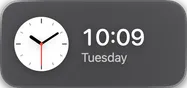
Clock
The time, in digits.
- Options
- Time zone (this Mac or 13 cities), Hours (System, 24-hour, 12-hour), seconds and analog face.
-
Analog
The same clock, with hands.
- Options
- Same as Clock.
-
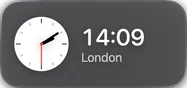
World Clock
The time in another zone. Add one for each city that matters.
- Options
- Same as Clock. Starts on London, New York or Tokyo.
-

Stopwatch
Click to open: start, pause, lap and reset.
- Options
- None.
-
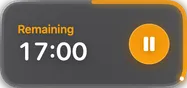
Focus Timer
A countdown that alerts you at the end. The panel has one-click durations and custom minutes (1 to 600). On a wide tile, start and reset are right there.
- Options
- Quick durations (default 5, 10, 15, 25 and 45 min) and Colour.
- Needs
- Notifications, for the alert.
-
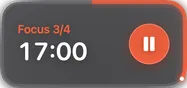
Pomodoro
Focus and break cycles, with today's sessions. Default: 25 min focus, 5 min break, and a 15-minute long break every 4.
- Options
- Focus, Break and Long break (1 to 120 min), focus stretches before a long break (2 to 8), start breaks on their own, sound at the end.
- Needs
- Notifications.
-
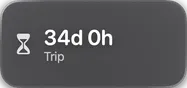
Countdown
How long until a date: a trip, a launch, a holiday. Name it whatever you like.
- Options
- Counting down to (date and time) and keep counting after it passes.
-
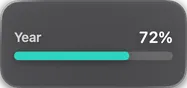
Time Progress
How much of the period is gone.
- Options
- Track: Day (default), Week, Month or Year.
Calendar
Reads the macOS Calendar app. One widget, four looks: switch them in Look. Needs read-only Calendar access.
-
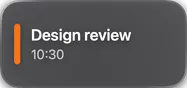
Next event
Your next event and how long until it starts.
- Options
- Look ahead (Today, 3 days, A week, A month), all-day events, sideways text on a side Dock and which calendars.
- Needs
- Calendars (read-only).
-
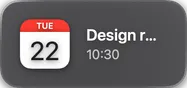
Date + next event
Today's date, with the next event beside it.
- Options
- Same as Next event.
- Needs
- Calendars (read-only).
-
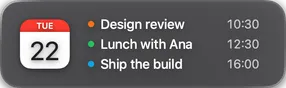
Date + agenda
The date and a list of what is coming up.
- Options
- Same as Next event.
- Needs
- Calendars (read-only).
-
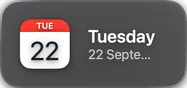
Date
Just today's date. A click shows what is coming up.
- Options
- Same as Next event.
- Needs
- Calendars (read-only).
Reminders
The macOS Reminders app, right from the bar: see, add and tick off. Needs Reminders access.
-
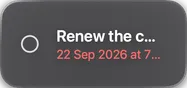
Next reminder
Your next open reminder. On a wide tile, a circle to tick it off right there.
- Options
- List (all or one), Look ahead and show completed.
- Needs
- Reminders.
-
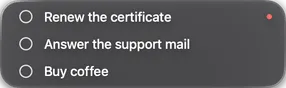
List
Your open reminders. The panel has a field to add one and a way to mark one done.
- Options
- Same as Next reminder.
- Needs
- Reminders.
-
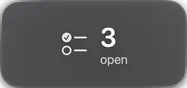
Count
Just the number of open reminders.
- Options
- Same as Next reminder.
- Needs
- Reminders.
Notes & media
A note always at hand, and what is playing now.
-

Sticky Note
A note you edit right in its panel.
- Options
- The text and the colour: Yellow, Pink, Blue, Green, Purple or Red.
-
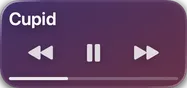
Now Playing
What is playing in Music or Spotify, with the artwork. On a wide tile, previous, play/pause and next. A click brings the player forward; the panel is on right-click.
- Options
- Album artwork on the icon.
- Needs
- Control Music / Spotify.
System
Battery, processor, memory and network. Each has more than one look, picked in Look.
-
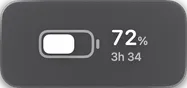
Battery · Status
Charge and whether it is charging. The panel shows time left and the battery of AirPods, mice and other connected devices.
- Options
- Charge on the icon.
-
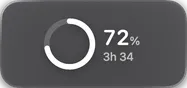
Battery · Percentage ring
Charge as a ring.
- Options
- Just the common ones: label, look and width (up to 2).
-
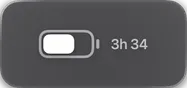
Battery · Icon only
The familiar battery icon, on the bar.
- Options
- Just the common ones: label, look and width (up to 2).
-
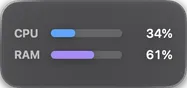
Activity · Bars
Processor and memory as bars. The panel has the numbers and a way into Activity Monitor.
- Options
- Processor and Memory, each on or off.
-
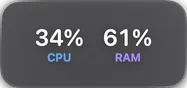
Activity · Numbers
Processor and memory as percentages.
- Options
- Processor and Memory.
-
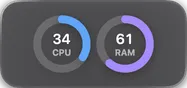
Activity · Rings
Processor and memory as rings.
- Options
- Processor and Memory.
-
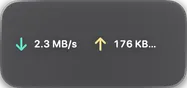
Network · Numbers only
Download and upload right now.
- Options
- Interface: all or one (Wi-Fi, Ethernet…).
-
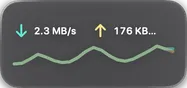
Network · With chart
Download and upload, with a chart of the last moments.
- Options
- Interface.
-

Fans
How fast the fans are turning, and one click to pin them at maximum or hand them back to macOS. Only on Macs with fans.
- Options
- Remove Helper. The first switch installs a helper that runs as administrator, because macOS only lets an administrator change the fans. It reads nothing and sends nothing.
Tools
Small tools that save a trip to another app.
-
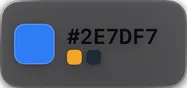
Colour Picker
Picks a colour from anywhere on screen and copies it. Keeps the ones you picked, with pins. Needs no Screen Recording.
- Options
- Copy as: Hex (default), lowercase hex, CSS rgb(), CSS hsl(), SwiftUI Color, NSColor or CSS variable. Copy when picked, a global shortcut and how many to keep (4 to 60).
-

Clipboard
History of what you copied: text, images and files, with search and pins. Clicking an item puts it back on the clipboard. The history is encrypted on your Mac.
- Options
- Last item on the tile, keep between launches, skip password manager copies, website previews, how many items (10 to 1000, default 200) and forget after N days (default 30). Pinned items never expire.
-
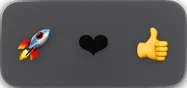
Emoji
Click an emoji to copy it. The wide tile shows recent ones.
- Options
- Skin tone, close after copying and how many recent (8 to 64).
-
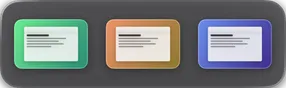
Screenshots
Your latest screenshots, ready to drag anywhere. Follows the Mac's screenshot folder.
- Options
- Folder, what a click does (opens, shows in Finder or copies), the last one on the tile and how many to show (6 to 60).
-
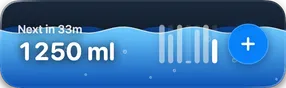
Drink Water
Counts today's glasses towards a goal. Two looks: Tank (default), which drains over time, and Glass. The panel has drink, take back a glass, and the week.
- Options
- Daily goal (500 to 6000 ml, default 2000), glass size, how long a glass lasts (Tank only), millilitres or ounces and glasses on the icon.
-
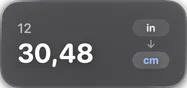
Unit Converter
Converts units as you type, with Turn it around and copy. It does not do currency.
- Options
- Converts: Length, Mass, Temperature, Volume, Speed, Area or Data. From and To (default: inches to centimetres).
-

Keyboard Lock
One click locks the keyboard, and the trackpad and mouse with it, so you can clean without typing anything. It unlocks when you hold a click, or by itself after a while. It needs the Accessibility permission.
- Options
- Lock the trackpad and mouse too. Hold a click to unlock for (default: 3 s). Unlock by itself after (default: 2 min). Play a sound when it locks and unlocks. Touch ID and the power button are not locked, and nothing locks while a password field has focus or the screen is locked.
Pet
A little creature that moves as your Mac works. Nine species, all with the same options.
-
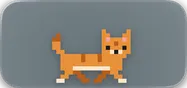
Cat
Sits, walks, runs or sleeps with processor or memory load. Right-click › Put Out Food.
- Options
- Animal, Coat, Size (Small, Medium, Large), Moves to (Processor or Memory), the reading beside it, where it goes (stays in its tile or walks the whole Dock) and whether it stays out when the Dock hides.
-
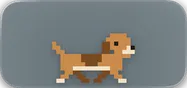
Dog
Sits, walks, runs or sleeps with processor or memory load. Right-click › Put Out Food.
- Options
- Animal, Coat, Size (Small, Medium, Large), Moves to (Processor or Memory), the reading beside it, where it goes (stays in its tile or walks the whole Dock) and whether it stays out when the Dock hides.
-

Bird
Sits, walks, runs or sleeps with processor or memory load. Right-click › Put Out Food.
- Options
- Animal, Coat, Size (Small, Medium, Large), Moves to (Processor or Memory), the reading beside it, where it goes (stays in its tile or walks the whole Dock) and whether it stays out when the Dock hides.
-
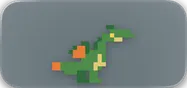
Dragon
Sits, walks, runs or sleeps with processor or memory load. Right-click › Put Out Food.
- Options
- Animal, Coat, Size (Small, Medium, Large), Moves to (Processor or Memory), the reading beside it, where it goes (stays in its tile or walks the whole Dock) and whether it stays out when the Dock hides.
-
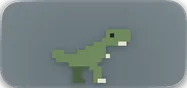
Dino
Sits, walks, runs or sleeps with processor or memory load. Right-click › Put Out Food.
- Options
- Animal, Coat, Size (Small, Medium, Large), Moves to (Processor or Memory), the reading beside it, where it goes (stays in its tile or walks the whole Dock) and whether it stays out when the Dock hides.
-
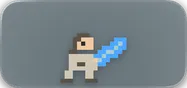
Warrior Girl
Sits, walks, runs or sleeps with processor or memory load. Right-click › Put Out Food.
- Options
- Animal, Coat, Size (Small, Medium, Large), Moves to (Processor or Memory), the reading beside it, where it goes (stays in its tile or walks the whole Dock) and whether it stays out when the Dock hides.
-
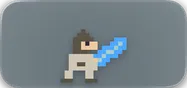
Warrior Boy
Sits, walks, runs or sleeps with processor or memory load. Right-click › Put Out Food.
- Options
- Animal, Coat, Size (Small, Medium, Large), Moves to (Processor or Memory), the reading beside it, where it goes (stays in its tile or walks the whole Dock) and whether it stays out when the Dock hides.
-
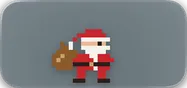
Santa
Sits, walks, runs or sleeps with processor or memory load. Right-click › Put Out Food.
- Options
- Animal, Coat, Size (Small, Medium, Large), Moves to (Processor or Memory), the reading beside it, where it goes (stays in its tile or walks the whole Dock) and whether it stays out when the Dock hides.
-

Ghost
Sits, walks, runs or sleeps with processor or memory load. Right-click › Put Out Food.
- Options
- Animal, Coat, Size (Small, Medium, Large), Moves to (Processor or Memory), the reading beside it, where it goes (stays in its tile or walks the whole Dock) and whether it stays out when the Dock hides.
AI
How much of Claude you have used. It reads Claude Code's files on your Mac: no account, no login.
-
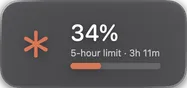
Claude · 5-hour limit
How much of your plan's 5-hour limit is used. Refreshes every minute.
- Options
- Shows: switches between the three looks.
- Needs
- Claude Code installed. Under Plan limits, click Set it up once: PrimoDock then reads usage through Claude Code's status line.
-
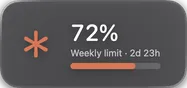
Claude · Weekly limit
How much of the weekly limit is used.
- Options
- Shows.
- Needs
- The same Set it up as the 5-hour limit.
-
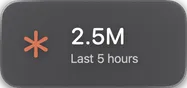
Claude · Tokens
Tokens spent in Claude Code.
- Options
- Count: last 5 hours (default), today or last 7 days. Budget: none, or 5 to 100 million.
- Needs
- Just Claude Code installed.
GitHub
Your pull requests and contributions. Uses GitHub's gh tool, no token: install it with brew install gh and sign in with gh auth login.
-
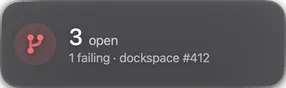
My pull requests
Your open PRs. Refreshes every 2 minutes.
- Options
- Repositories (empty: every one your account sees), count drafts and list at most 5, 8, 15 or 25.
- Needs
ghinstalled and signed in.
-
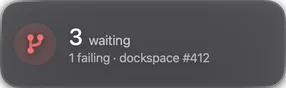
Waiting on you
PRs waiting on your review.
- Options
- Same as My pull requests.
- Needs
ghinstalled and signed in.
-
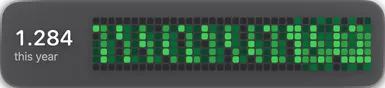
Contribution graph
Your contribution graph, with the year's total.
- Options
- Just the common ones: label, look and width.
- Needs
ghinstalled and signed in.
Weather
Weather for the city you pick, from Open-Meteo. No location access, no key.
-
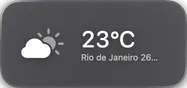
Current
Temperature and conditions now. Refreshes every 20 minutes and when you open the panel.
- Options
- City (search by name, or Change city in the panel), Celsius or Fahrenheit (default from the Mac's region) and what it feels like.
-
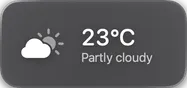
Conditions
The weather now, in more detail.
- Options
- Same as Current.
-
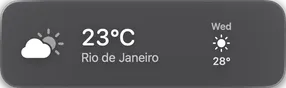
Forecast
The next 5 days, side by side.
- Options
- Same as Current.